Fence Project work day
Follow along today with getting the fence project set up in Photoshop
You will be able to edit images by cropping, adjustments, and or filters
You will need to make 1 fence design, but can make more if you want for your extra page
Here are the directions..........
Step by Step Directions for Photoshop
 -Open your fence photo in Photoshop
-Rename the layer FENCE
-Open the photo that you want to "shine though the holes" the zoomed in pic
-Pull your tabs down so the photos are loose in Photoshop
-Drag your zoomed photo on top of the fence photo
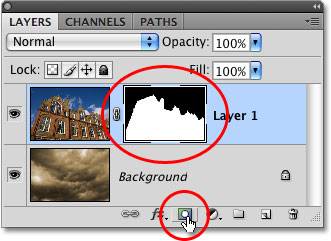
-At the bottom of the layers panel there is a box with a circle in it---that is the layer mask
-Hold down the ALT key and press the layer mask
-A black box should show up next to your top layer. The top layer will also disapear
-Use the white brush to erase and use the black brush to add back.
 -Open your fence photo in Photoshop
-Rename the layer FENCE
-Open the photo that you want to "shine though the holes" the zoomed in pic
-Pull your tabs down so the photos are loose in Photoshop
-Drag your zoomed photo on top of the fence photo
-At the bottom of the layers panel there is a box with a circle in it---that is the layer mask
-Hold down the ALT key and press the layer mask
-A black box should show up next to your top layer. The top layer will also disapear
-Use the white brush to erase and use the black brush to add back.

No comments:
Post a Comment